Build modules
How to organize your course into modules students move through
What is a module?
Section titled “What is a module?”A module is an ordered collection of course content and assignments, like a week or a unit. It lists pages and slide decks alongside the assignments students submit, in the order you set. Every assignment lives in a module, so modules are where you create them and where students find them.
A module isn’t backed by a Github repo. It lives entirely in Classmoji. Repositories are storage for student work and stay separate.
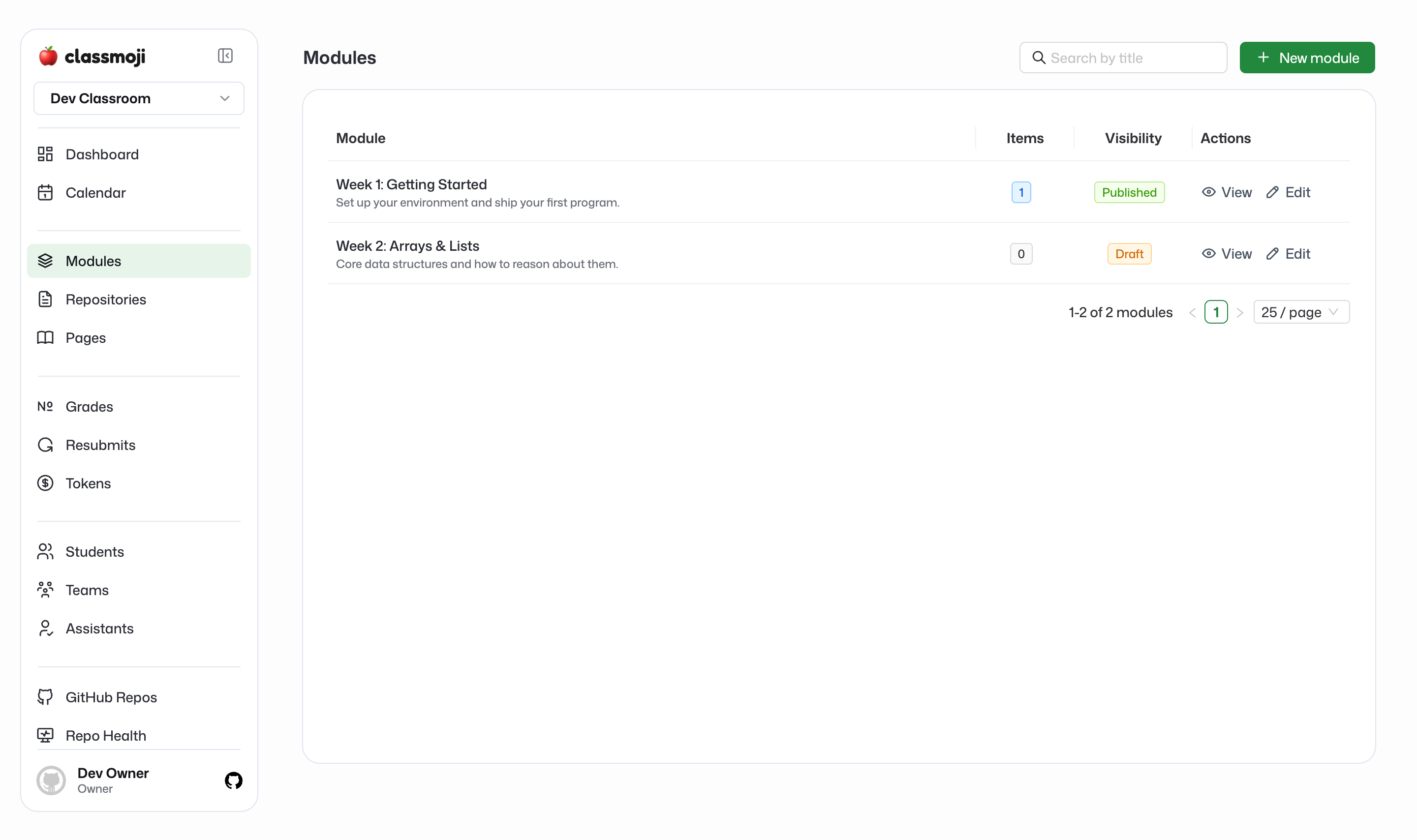
Creating a module
Section titled “Creating a module”Go to Modules and click New module.
- Title: the module name students see (e.g. “Week 1: Getting Started”)
- Description: an optional summary shown under the title
Create the module first, then open it to add content.
Adding and ordering content
Section titled “Adding and ordering content”Click Add item on a module card. It offers:
- Assignment: submitted through a repository, a quiz, or a form. See Modules & assignments.
- Page
- Slides
Add items, then drag them into the order you want students to follow. Removing a page or deck from a module doesn’t delete it, it just takes it out of that module; the same page can appear in several modules. Assignments belong to their module.
The module card
Section titled “The module card”Each assignment row on the card shows its title, a caption such as lab-1 · push · 10% (repository name, submission mode, weight) or · issue, a Published or Draft tag, and Edit, which opens the assignment form. Clicking the row opens its submissions: the assignment page for a repository assignment, the results for a quiz, the responses for a form. The row’s ⋮ menu has Edit repository / Edit quiz / Edit form (to change the thing itself) and Delete assignment.
Publishing a module
Section titled “Publishing a module”Modules start as Draft and stay hidden from students until you publish them. Flip a module to Published when it’s ready. As the Owner you always see your modules so you can build them. Students and assistants only see a module once it’s published.
This makes modules a natural way to release content on a schedule: build the whole term up front as drafts, then publish each module when you reach it.
Showing modules to students
Section titled “Showing modules to students”Students get a Modules entry in their sidebar that shows each published module with its items in the order you set. Their sidebar is short, Dashboard, Calendar, Modules, Assignments, Regrade/Resubmit, Tokens, Settings, Help, and Modules is how they reach pages, slides, and their work; the Assignments page is the same work as a flat list with deadlines and status. Modules are on by default; the Show Modules switch under Settings > Content > Student Navigation hides the entry if you need to.