Configure tokens
How to configure tokens and manage deadline extensions
How tokens work
Section titled “How tokens work”Tokens are a flexible deadline extension system. You allocate tokens to students at the start of the term, and they spend them to buy extra hours on a late assignment. No emails, no individual negotiations.
Setting the token cost
Section titled “Setting the token cost”Go to Settings > Extension and set Tokens per hour — how many tokens it costs a student to extend a deadline by one hour. This default also applies at the assignment level when creating a module, where you can override it per assignment.
Assigning tokens to students
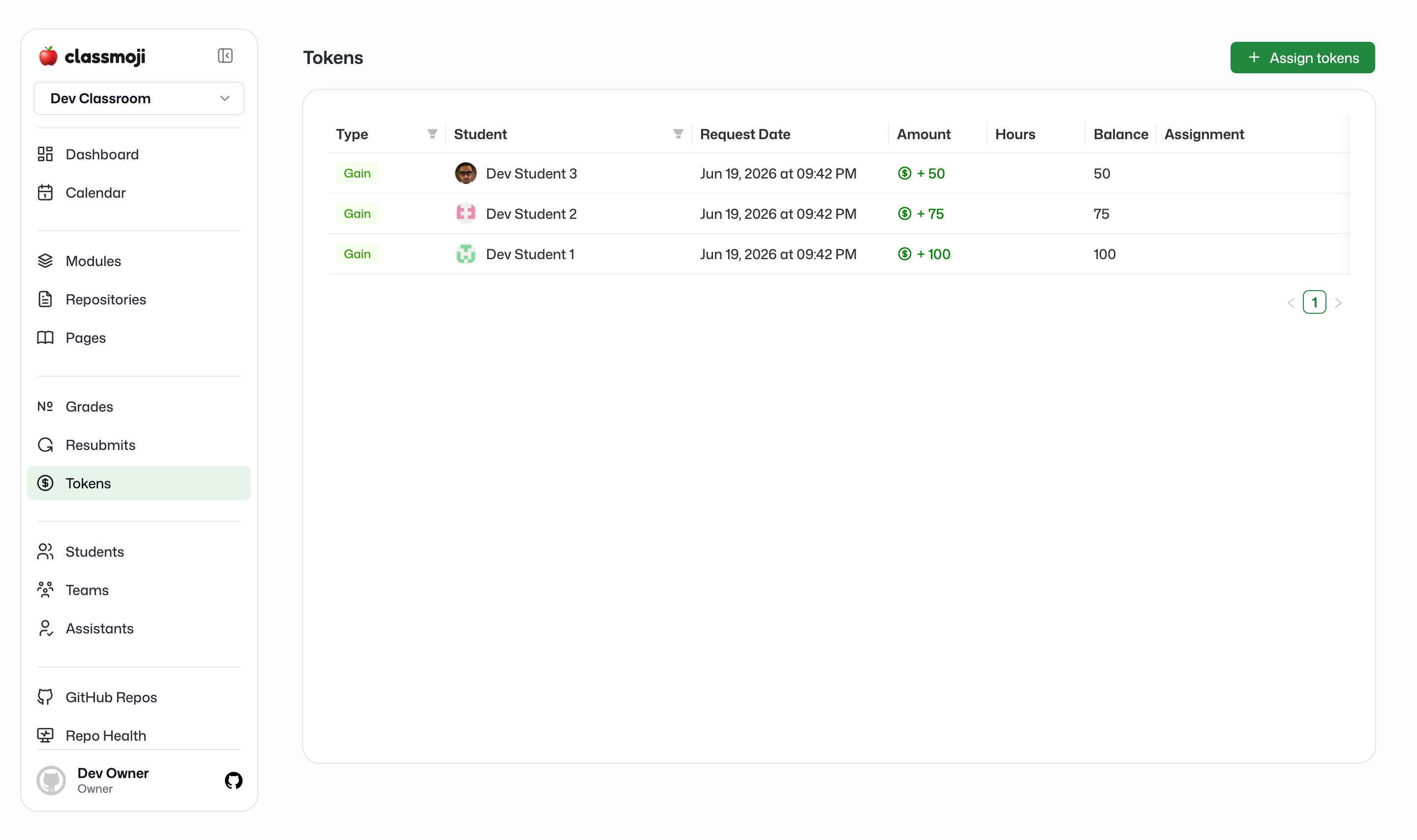
Section titled “Assigning tokens to students”Go to Tokens and click Assign Tokens. You can assign to specific students or to everyone at once. Add an optional description like “start of semester allocation” to keep the history readable. Tokens are added to each student’s balance immediately. Do this before anyone needs them, it takes 10 seconds and saves a lot of awkward conversations later.
How students use tokens
Section titled “How students use tokens”After a deadline passes, students see an extension option next to the late assignment on their dashboard. They pick how many hours they want, see the token cost (hours x tokens per hour for that assignment), and confirm. Their deadline extends and their balance is debited.
Token history
Section titled “Token history”The Tokens page shows a full log of every transaction across the classroom: who received tokens, who spent them, and when. Students can see their own transaction history on their Tokens page. Everything is logged — you’ll never have to take anyone’s word for it.