Build modules
How to organize your course into modules students move through
What is a module?
Section titled “What is a module?”A module is an ordered collection of course content. Group repositories, pages, slides, and quizzes into a single sequence students move through, like a week or a unit. Modules don’t replace repositories. They sit on top of them as a way to organize what students see and the order they see it in.
Unlike a repository, a module isn’t backed by a Github repo. It lives entirely in Classmoji.
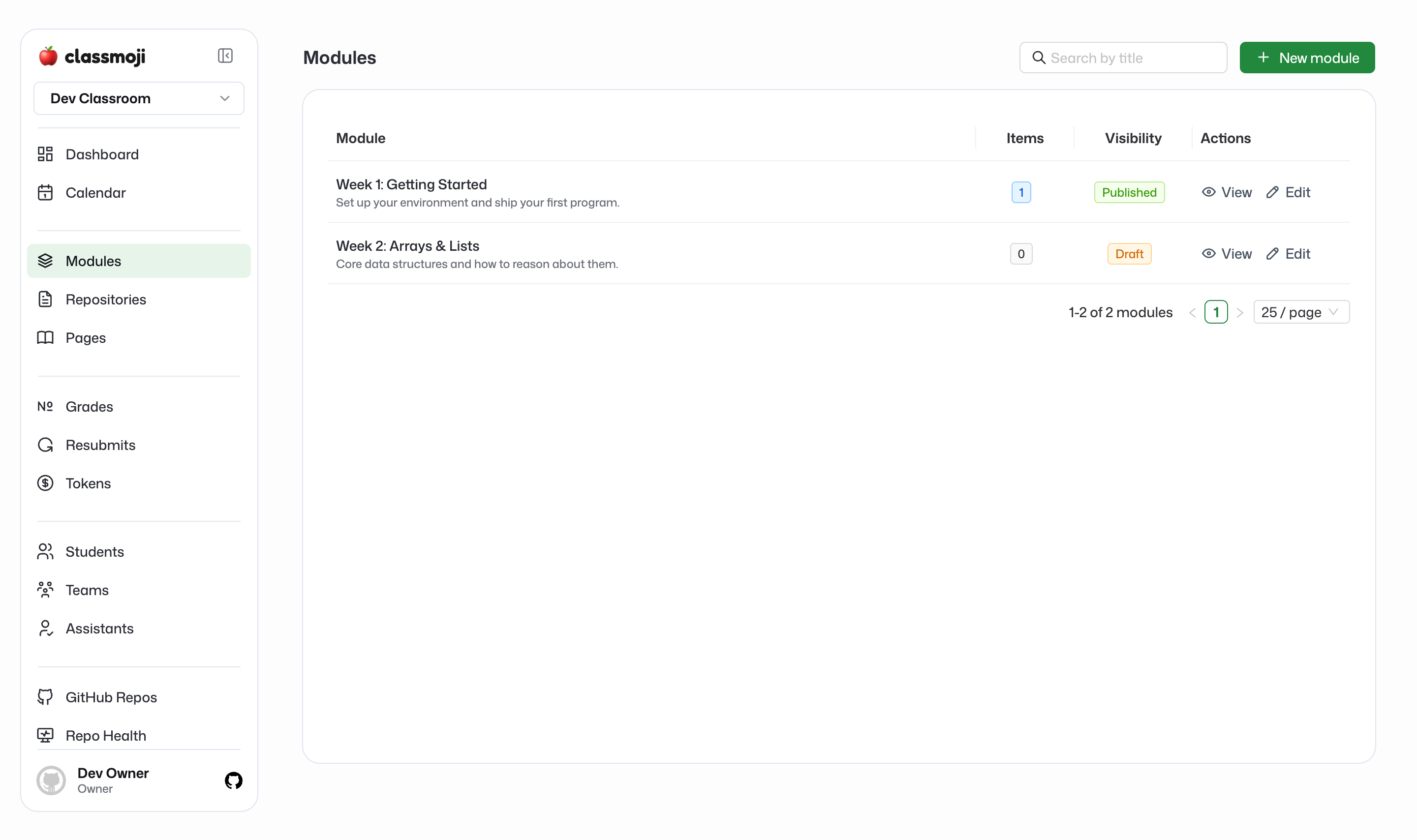
Creating a module
Section titled “Creating a module”Go to Modules and click New module.
- Title: the module name students see (e.g. “Week 1: Getting Started”)
- Description: an optional summary shown under the title
Create the module first, then open it to add content.
Adding and ordering content
Section titled “Adding and ordering content”Open a module to add items to it. A module can hold:
- Repositories
- Pages
- Slides
- Quizzes
Add items, then drag them into the order you want students to follow. Removing an item from a module doesn’t delete the underlying content, it just takes it out of that module. The same repository or page can also live outside the module, so a module is really a curated view over content you already have.
Publishing a module
Section titled “Publishing a module”Modules start as Draft and stay hidden from students until you publish them. Flip a module to Published when it’s ready. As the Owner you always see your modules so you can build them. Students and assistants only see a module once it’s published.
This makes modules a natural way to release content on a schedule: build the whole term up front as drafts, then publish each module when you reach it.
Showing modules to students
Section titled “Showing modules to students”Modules are off for students by default. To turn them on, go to Settings > Content and enable Show Modules under Student Navigation. Once enabled, students get a Modules view in their sidebar that shows each published module with its items in the order you set, giving them a clear, guided path through the course instead of a flat list of repositories and pages.