Import from Github Classroom
Bring your existing Github Classroom classrooms, assignments, rosters, and grades into Classmoji
Already running your course on Github Classroom? You don’t have to rebuild it by hand. Classmoji can import your existing classrooms, assignments, student rosters, repositories, and recorded grades in a few clicks, straight from Github.
How it works
Section titled “How it works”The import reads your classroom data live from Github Classroom using your Github sign-in. There’s nothing to export or upload: Classmoji fetches your classrooms, then pulls each selected one’s assignments, roster, submissions, and grades for you.
A few things to know up front:
- You must be an administrator of the classrooms you want to import. Github only returns classrooms you administer, so anything you can’t see in Github Classroom won’t appear here.
- You don’t need to install the Classmoji Github app to import. Classrooms come in fully usable. Install the app later to light up the Github-connected features (no re-import needed):
- Repository syncing to keep imported repos in step with Github.
- Live grading through the emoji/issue pipeline.
- Publishing assignments and creating student repositories.
- Roster syncing and team management.
Step 1: Connect to Github Classroom
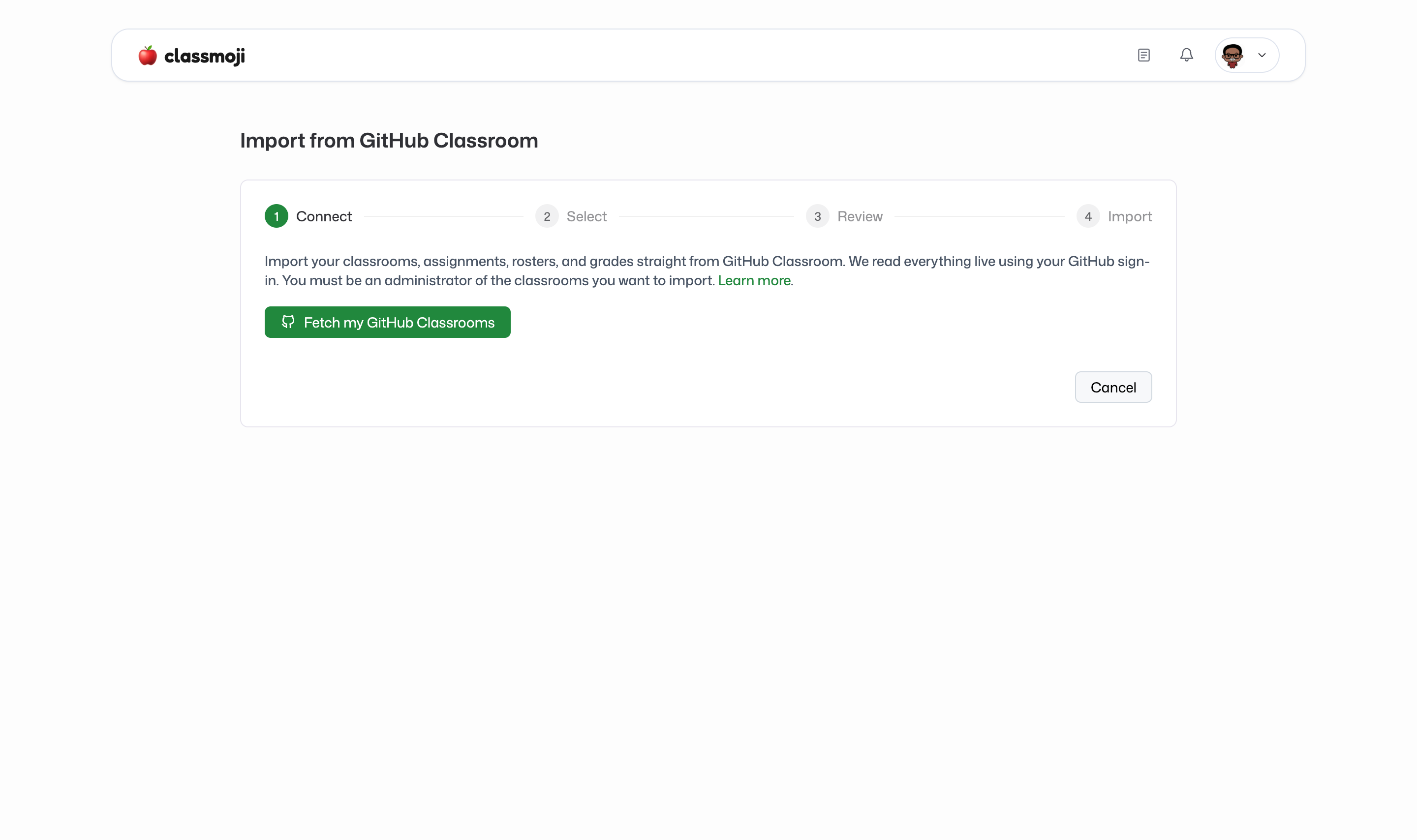
Section titled “Step 1: Connect to Github Classroom”Head to app.classmoji.io and click Import from Github Classroom on your classrooms screen. Then click Fetch my Github Classrooms.
Classmoji uses your existing Github sign-in to load the classrooms you administer. If your session can’t reach Github, you’ll be prompted to sign in with Github again and retry.
Step 2: Select classrooms
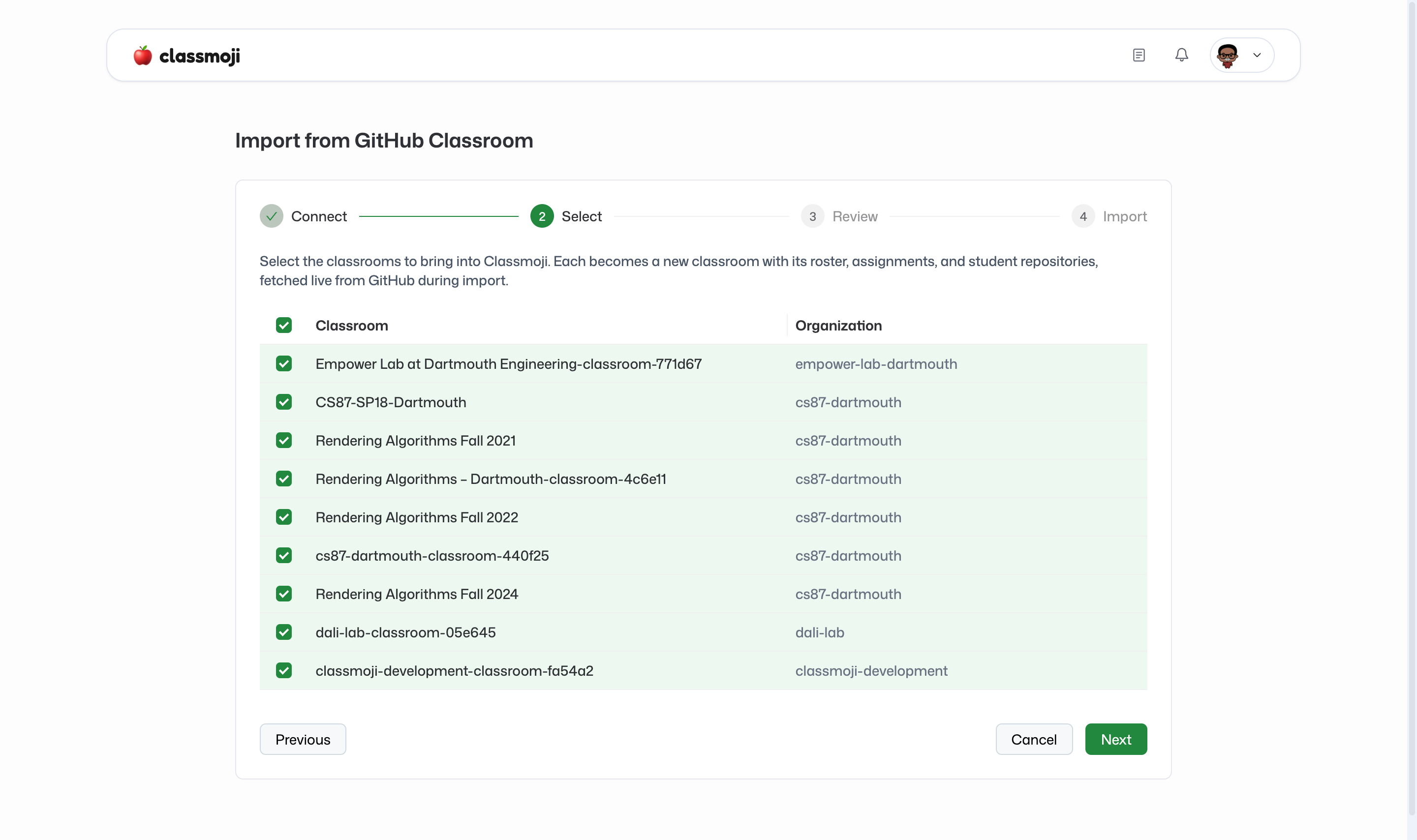
Section titled “Step 2: Select classrooms”You may administer many classrooms. Pick the ones you want to bring over. Each row shows the classroom name and its Github organization. Assignments, rosters, and grades are fetched per classroom during the import itself.
Step 3: Review and import
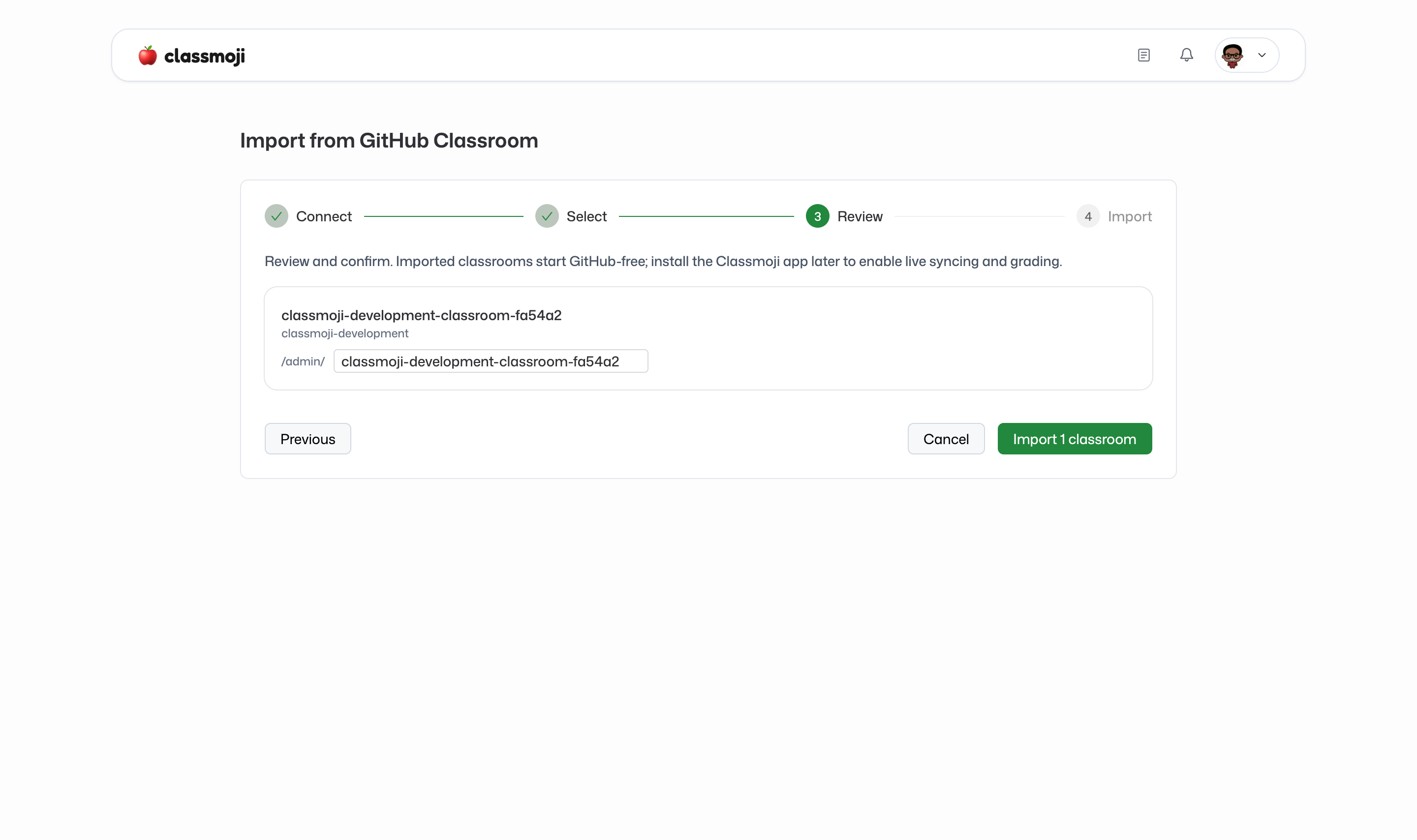
Section titled “Step 3: Review and import”For each selected classroom you can edit its slug (the part of the URL, e.g. cs-101). Slugs are auto-generated from the classroom name and must be unique within your Github organization.
Click Import. Classmoji starts a background job per classroom and shows live progress, including how many students, assignments, and repositories came in. Any warnings (for example, students with grades but no repository) appear next to each classroom as it finishes. When everything’s done, a single import drops you straight into its admin dashboard; importing several returns you to your classrooms list.
What gets imported
Section titled “What gets imported”- Classrooms under the matching Github organization.
- Assignments and their repositories, brought in published since the student repositories already exist on Github.
- Students, enrolled as classroom members. Because they already accepted in Github Classroom, they’re added as active members, not pending invites.
- Repositories, linked to each student (individual assignments) or to a recovered team (group assignments).
- Teams, for group assignments. Members are enrolled into the team and the shared repository is linked to it.
- Grades and submission info (points awarded/available, commit count, submitted/passing status, original repo URL), stored on each student’s repository.
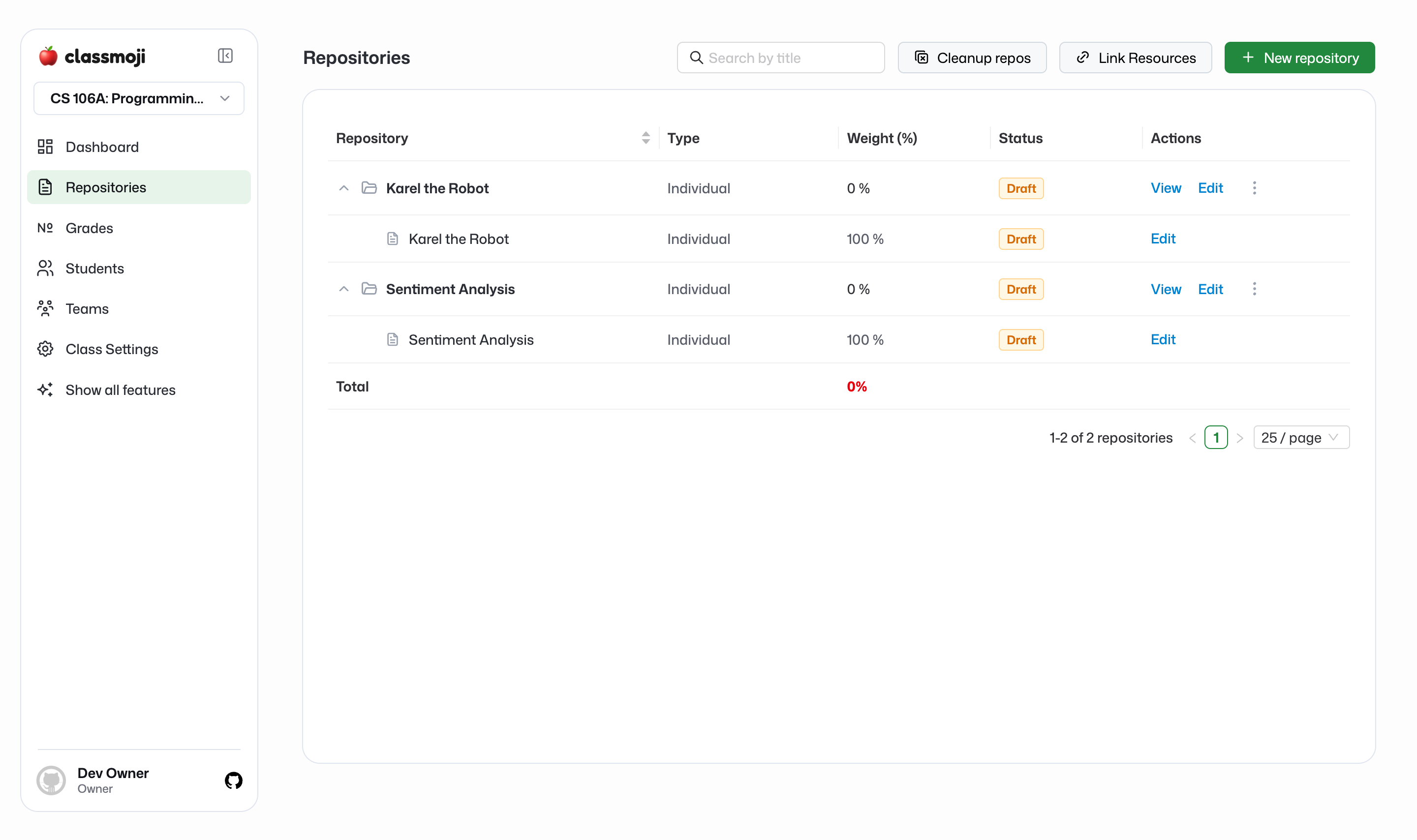
Each assignment lands as its own repository, published and unweighted, ready for you to weight when you configure the gradebook.
Things to know
Section titled “Things to know”- Grades are read-only. Imported scores are kept for viewing only. They are not pushed into Classmoji’s live emoji/issue grading pipeline, so they won’t conflict with a future real sync.
- Assignments start unweighted. Imported assignments have a grading weight of
0. Set weights when you configure the gradebook. - Group assignments are imported with their teams. Each team’s members are enrolled and the shared repository is linked to the team.
- Re-importing is safe. The import is idempotent. Importing the same classroom again updates records in place rather than creating duplicates, and it won’t overwrite edits you’ve made in Classmoji.
- Students with grades but no repository (graded in Github Classroom but never accepted the assignment) are skipped, with a warning so you know who was left out.
Organize into modules
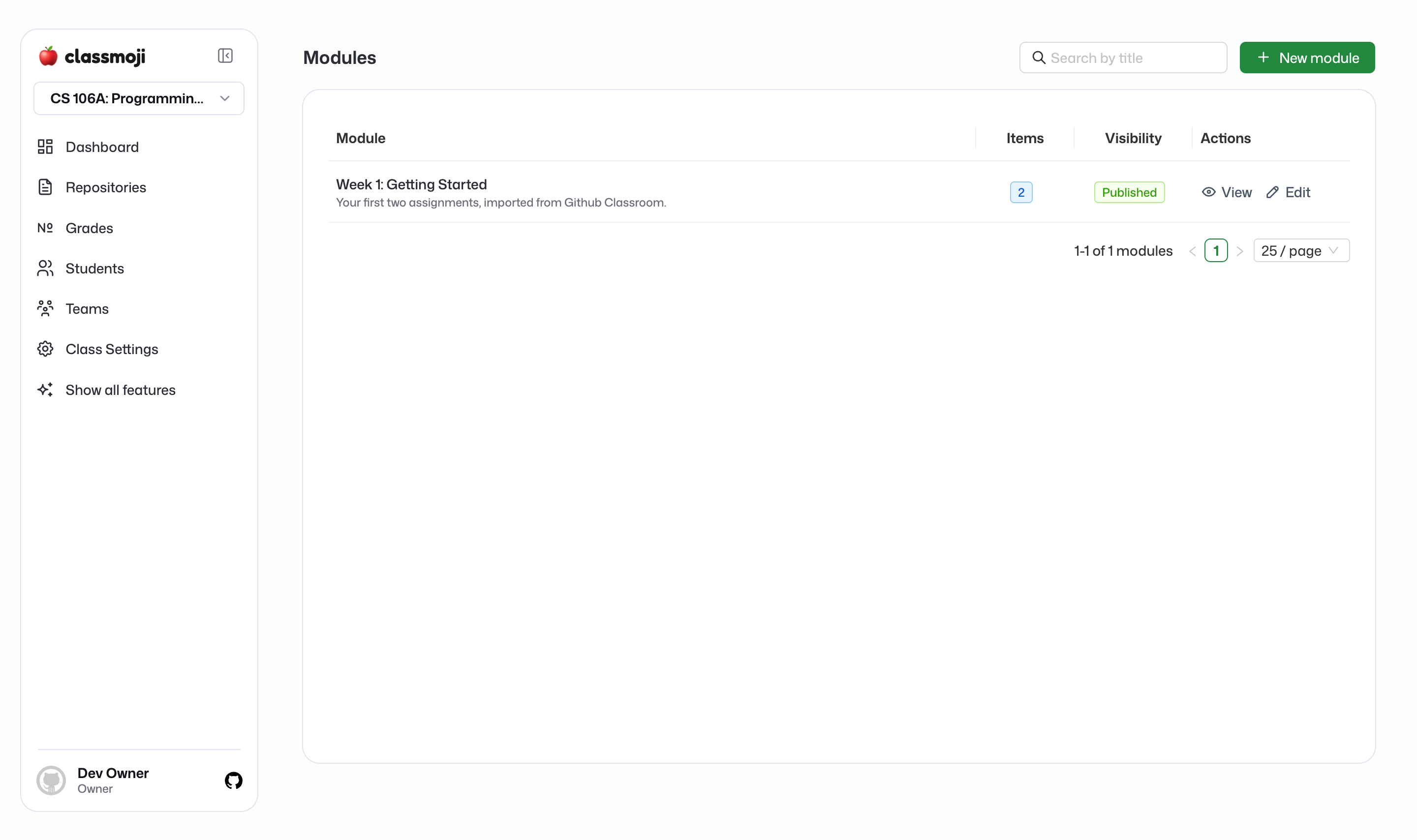
Section titled “Organize into modules”Imported assignments come in as individual repositories. To give students a guided path through them, group them into a module. A published module presents your imported work in the order you choose.