Grading
How emoji grading works and how to grade assignments
Classmoji replaces numeric scores with emojis. Each emoji maps to a numeric value you configure, so grading stays expressive without losing precision.
Emoji mappings
Section titled “Emoji mappings”Before grading, set up your emoji mappings in Settings > Grades. Each emoji you add gets assigned a numeric value (0–100). You can click Populate defaults to start with a sensible set.
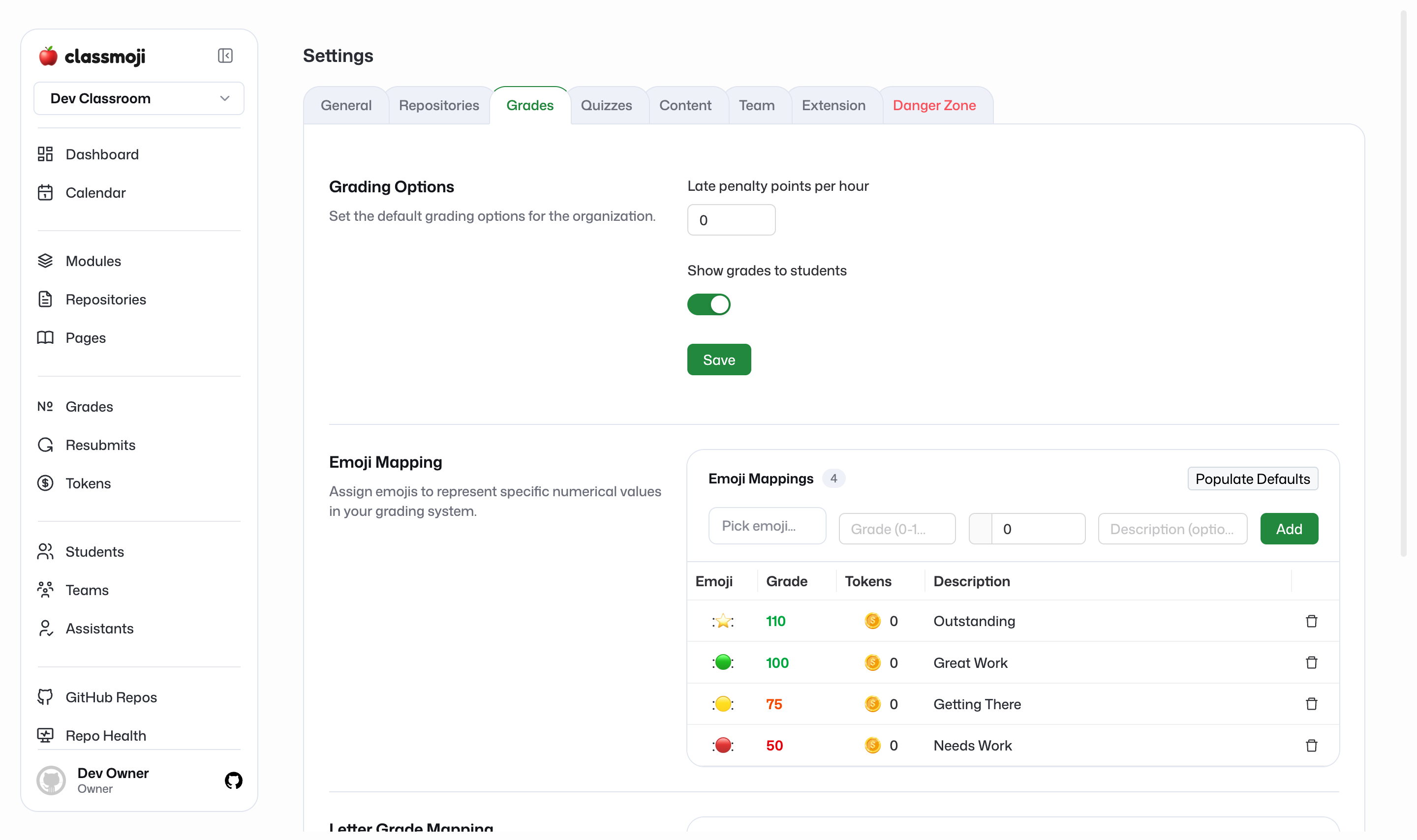
When you grade a submission, you pick from these emojis. If you assign multiple emojis to a submission, the grade is the average of their values.
Grading an assignment
Section titled “Grading an assignment”Open a repository from the sidebar and find the assignment you want to grade. Each student or team row has an emoji picker, click it to open, then click an emoji to add a grade. Click the same emoji again to remove it. Each row is one submission: a student’s repository, their work on that assignment, and its status.
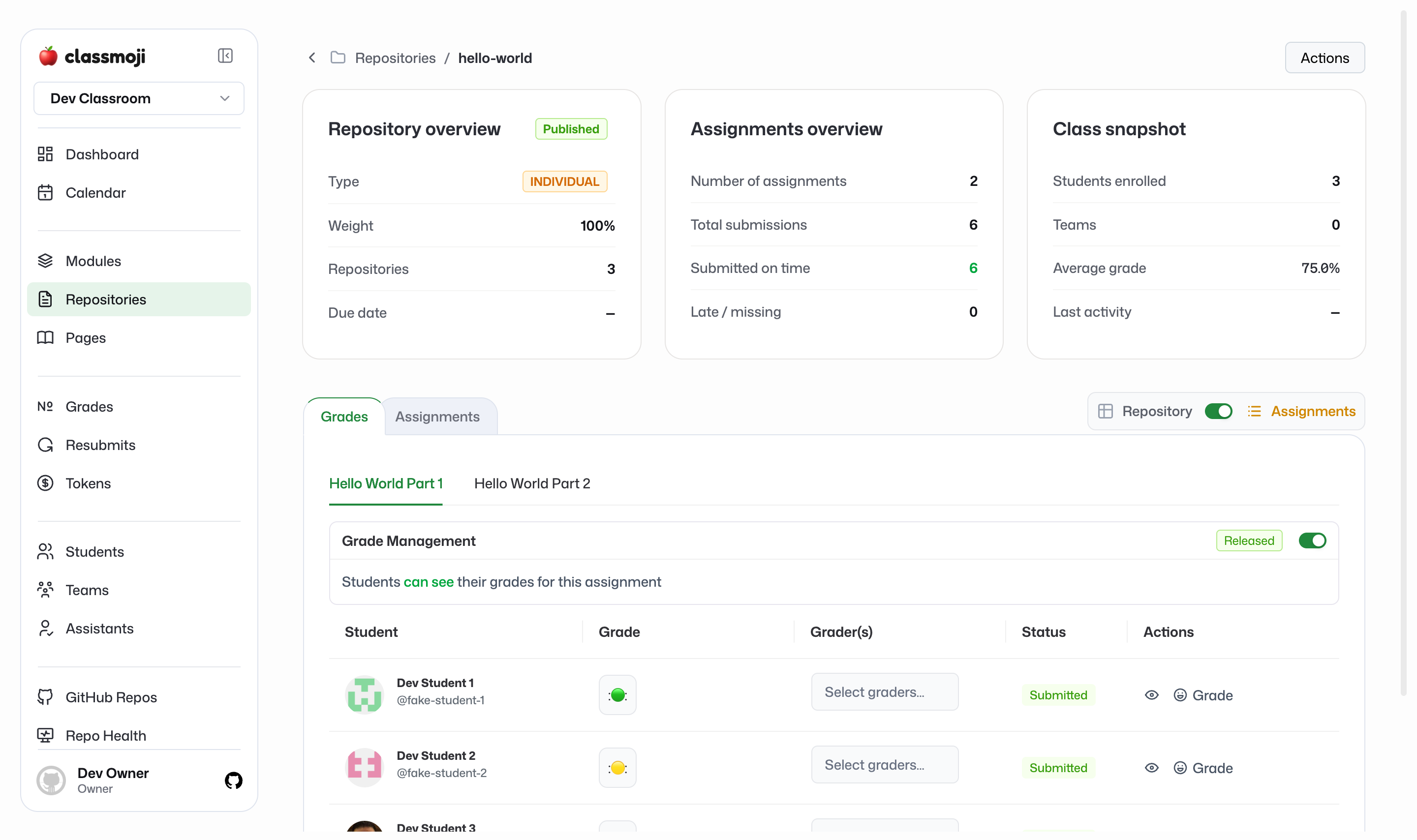
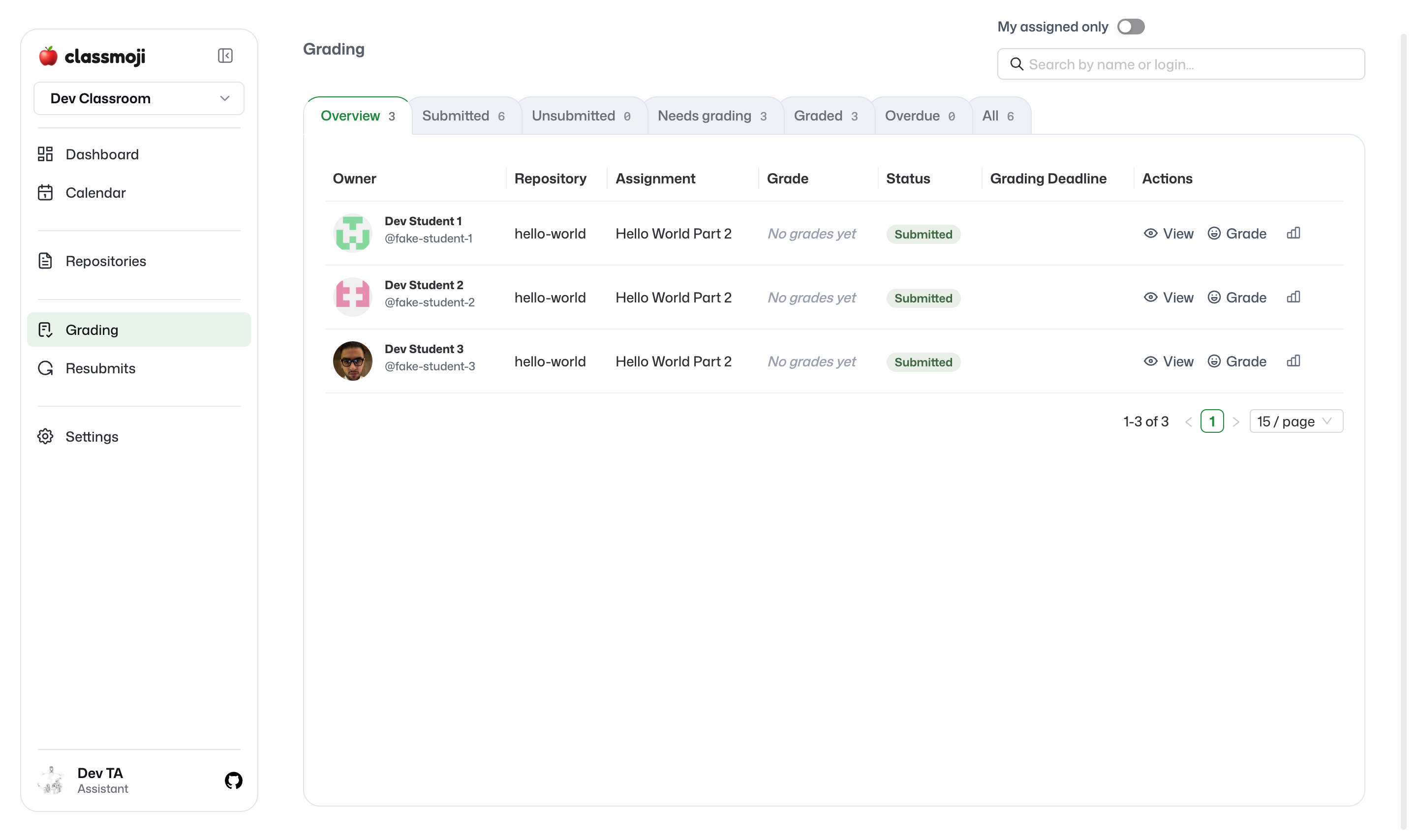
Assignments are graded per submission (one repository per student or team). You can assign graders to specific submissions from the repository view, so grading responsibilities stay organized across large classes. Assistants get a dedicated grading queue that gathers every submission across the class, with tabs for what still needs grading.
Releasing grades
Section titled “Releasing grades”Grades are hidden from students by default. Each assignment has a release toggle in the repository view. Flip it to release grades for that assignment — students will see their grade immediately.
Releasing is per-assignment, so you can release one assignment while keeping others hidden.
Grade calculations
Section titled “Grade calculations”Grades nest from the emoji values you apply all the way up to the final grade:
Assignment grade — the average of all emoji values applied to that submission.
Repository grade — the average of all assignment grades within the repository. If drop lowest is enabled for the repository, the single lowest assignment grade is excluded from the average.
Final grade — the average of all repository grades. Each repository contributes equally unless you configure weights in Settings > Grades.
Letter grades
Section titled “Letter grades”Map numeric ranges to letter grades in Settings > Grades (for example, 90–100 = A, 80–89 = B). Once configured, letter grades appear alongside numeric grades in the gradebook.
Late penalties
Section titled “Late penalties”You can apply a late penalty per assignment. When enabled, submissions after the deadline are automatically docked by the configured percentage. The penalty is applied before the grade feeds into repository and final grade calculations.
Gradebook
Section titled “Gradebook”The Grades page shows a full gradebook: every student as a row, every assignment as a column. You can toggle between emoji view and numeric view, search by student name or login, and edit letter grades inline.
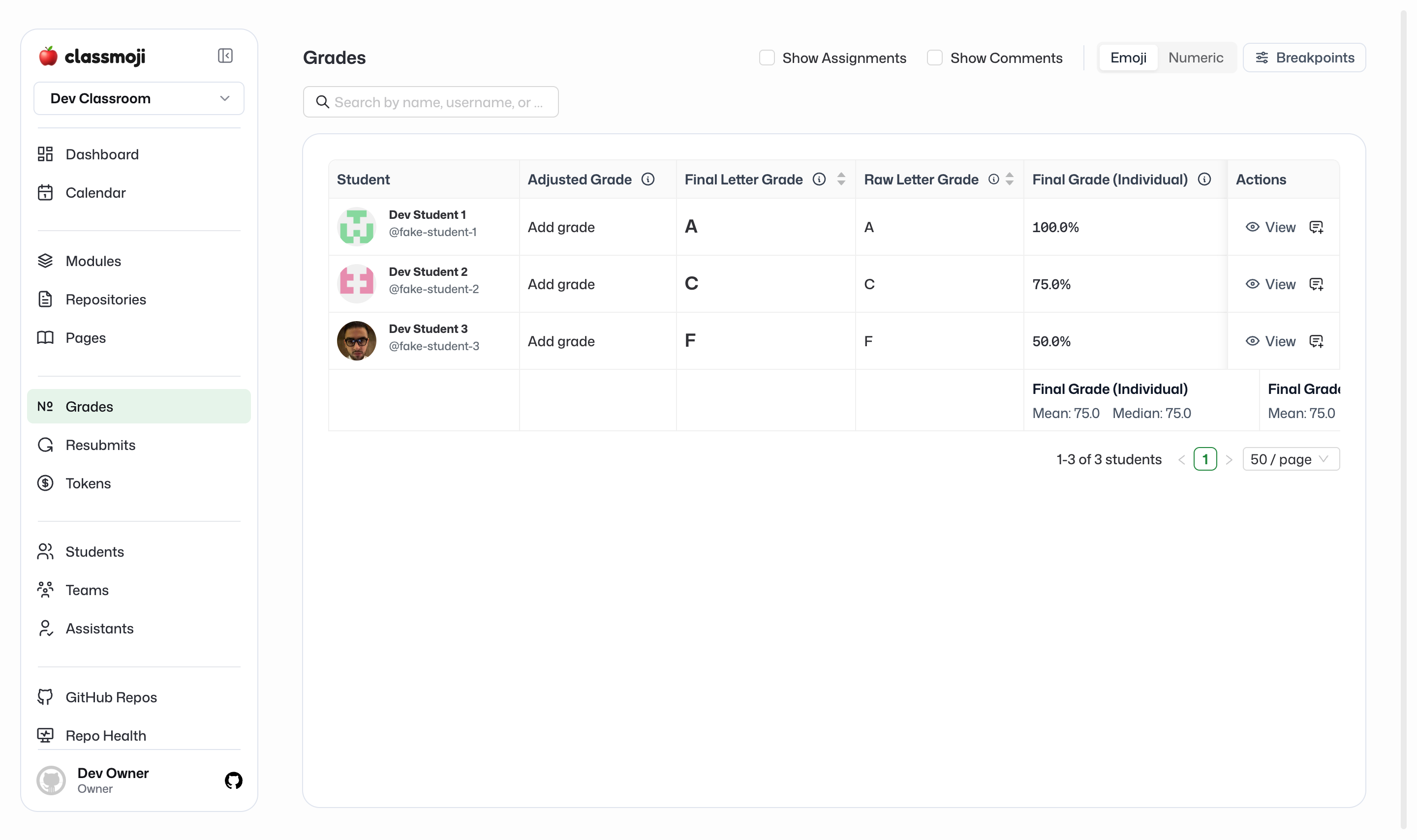
For each student you can also leave a grade comment — open the comment panel from the gradebook row to add notes visible only to staff.