Manage your roster
How to add students and teaching staff to your classroom
Adding students
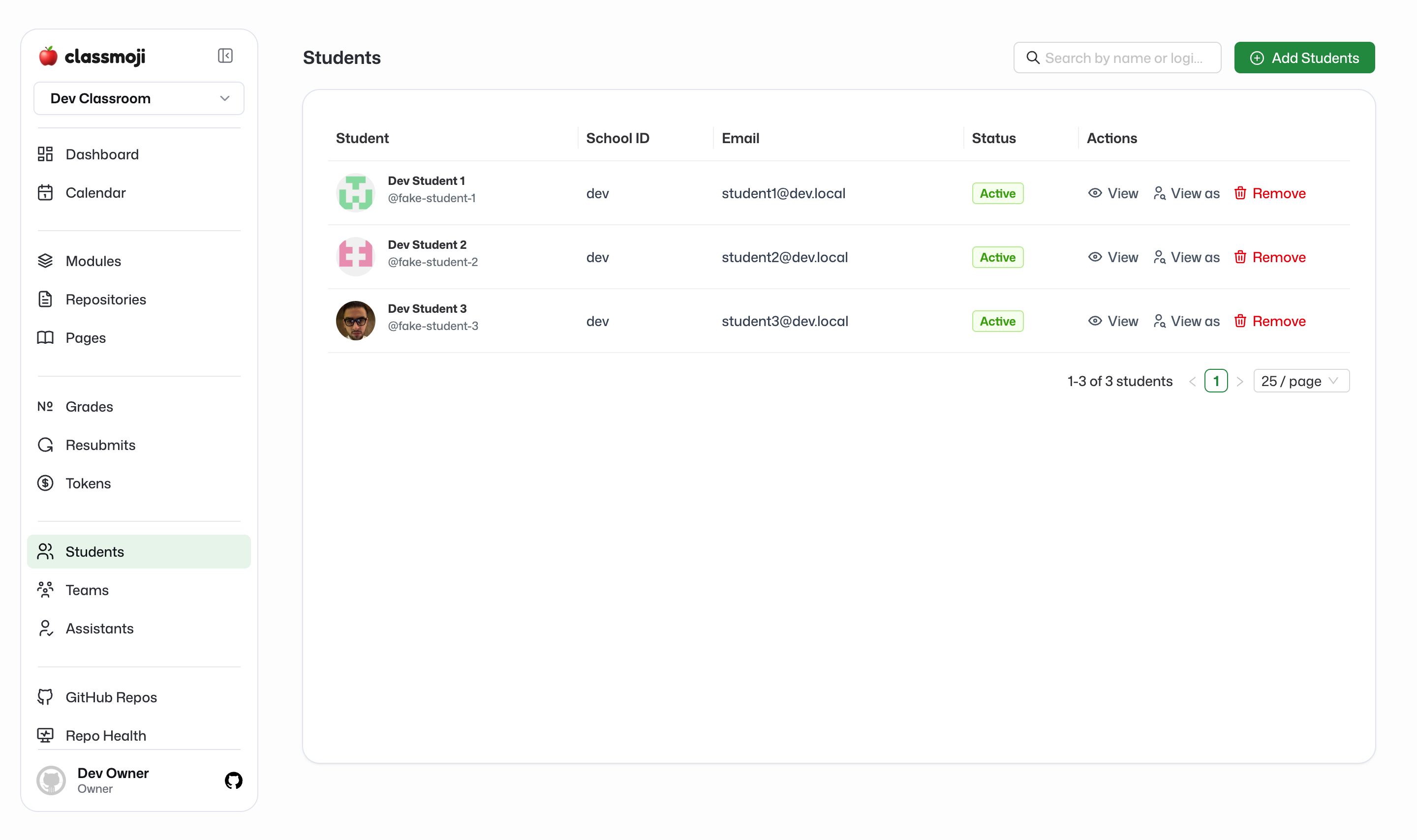
Section titled “Adding students”Go to the Students tab and click Add Students in the top right.
Paste your student list into the textarea, one per line. Export it from your school’s system and paste it straight in:
Name, EmailJohn Doe, john@school.eduJane Smith, jane@school.eduBefore adding, you’ll see a preview: valid entries in green, skipped ones in gray with a reason (invalid email, already enrolled, etc.). Confirm to add them all.
What happens next depends on whether they’re already on Classmoji:
- Already on Classmoji: automatically added to the classroom.
- New to Classmoji: sent an email invite to join the platform. Once they sign up, they’ll be added to the classroom.
When a student accesses the classroom for the first time, they’ll receive a Github organization invite. They need to accept it to access their classroom dashboard and get repo access. (Yes, there’s an extra step here. Github’s rules, not ours.)
Adding teaching staff
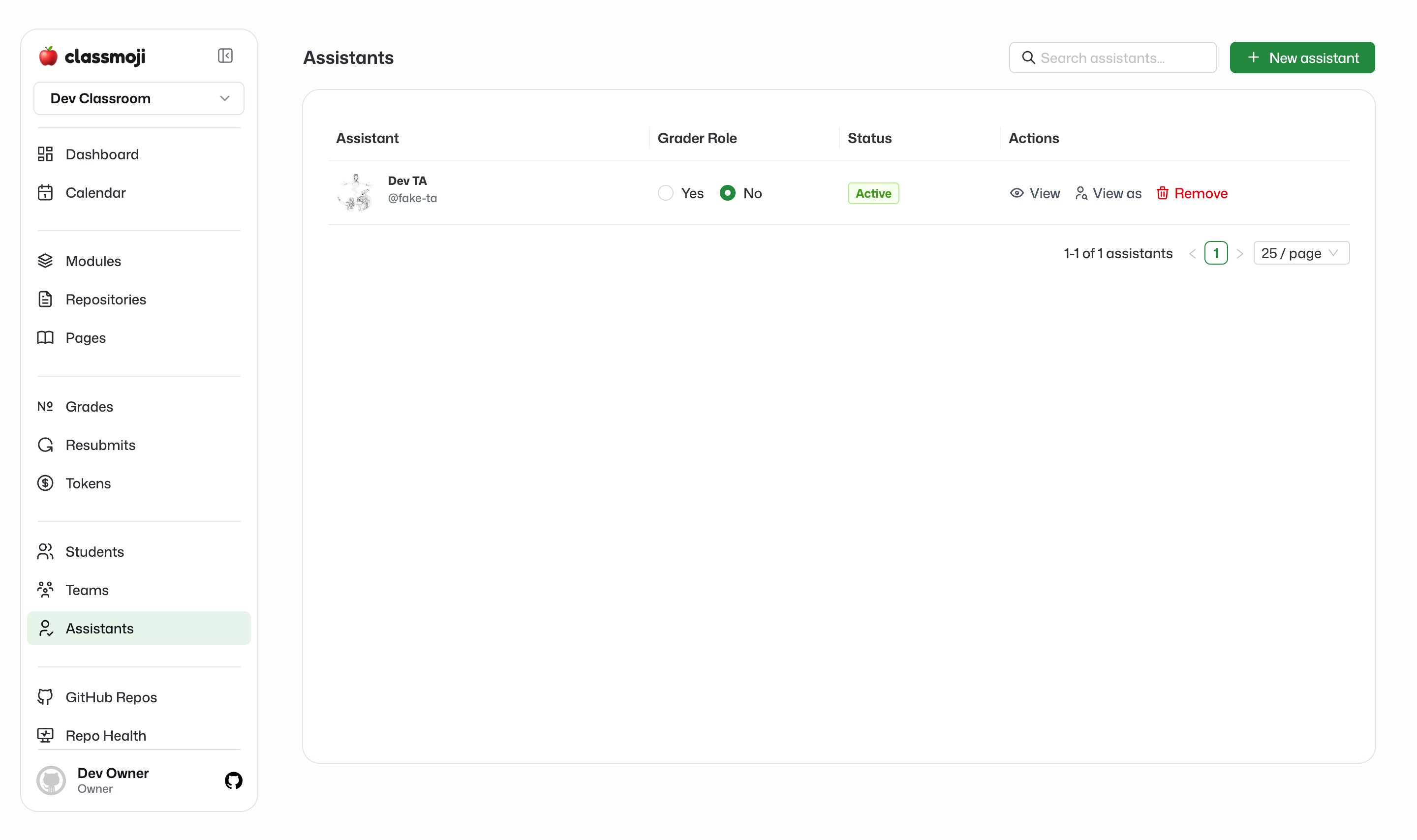
Section titled “Adding teaching staff”Go to the Teaching Staff tab and click New staff member.
Pick the role, enter their Github username, and confirm. The username is the only thing you have to type — name and email are optional, and default to whatever their Github profile says.
The three roles:
- Assistant: grades the work assigned to them and helps run the class.
- Teacher: teaches the class — content, quizzes, and grading — but not class settings.
- Co-owner: full control of the classroom, including changing every setting, managing the whole teaching staff, and deleting the classroom and everything in it. Adding one asks you to confirm, because there’s no undo for what they delete.
Co-owner is a Classmoji role, not a Github organization admin. Anything that runs with your own Github credentials — such as the Github cleanup offered when a classroom is deleted — will fail for a co-owner who isn’t an admin of the Github organization.
Roles add up rather than replace: granting someone a second role in the same class leaves the first one alone, and they appear once per role they hold.
Removing someone
Section titled “Removing someone”Find the person in the table and click Remove in the actions column. Pending invites can be revoked the same way. This removes them from the classroom and the Github organization, but any existing data they have stays intact.
On the Teaching Staff tab you’re removing the role on that row, so someone who holds two roles keeps the other one. A classroom always needs at least one owner, so removing the last one is refused.
Pending vs Active
Section titled “Pending vs Active”- Pending: added to the classroom but hasn’t joined the Github organization yet
- Active: part of both the Classmoji classroom and the Github organization